If you prefer watching an instructional video on how to use the text library instead of reading about it, you can find it here: YouTube
In TypingMaster 12 Premium (and trial versions), it is possible to add your own custom practice texts to Typing Tests or download ready-made texts from the Typing Text Library.
In the Typing Text Library, you can select texts based on language, category, or difficulty level according to your needs. Some texts include predefined passing criteria based on official test standards, while many others do not.
The easiest way to access the library is from the Typing Test tab in TypingMaster. Click the small arrow next to the “Add” button in the top right corner and select “Browse Text Library...”.
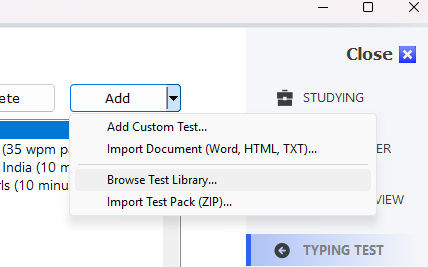
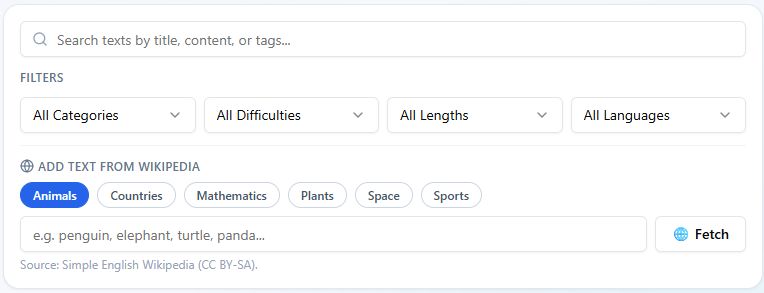
This will open your web browser and display the library homepage. There, you can browse texts and filter them by language, category, or difficulty. After applying filters, only the matching texts will be shown.
You can also add texts from various Wikipedia topics by entering a keyword into the 'Add Text From Wikipedia' search field.
First option is to use the copy-paste method: copy the desired library text using the 'Copy Text' button, then add a new text in TypingMaster within the 'Add Custom Text' window by pressing CTRL-V in the 'Test Text' field. At the same time, you can define your preferred passing limits and other settings for the test text.
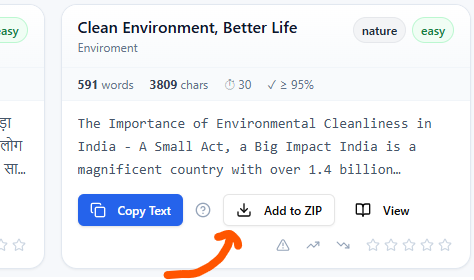
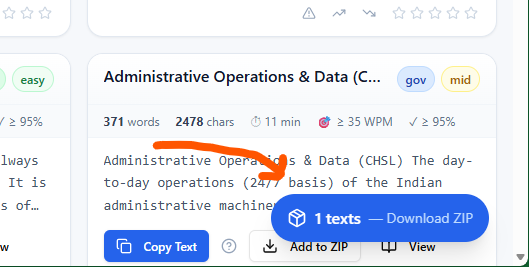
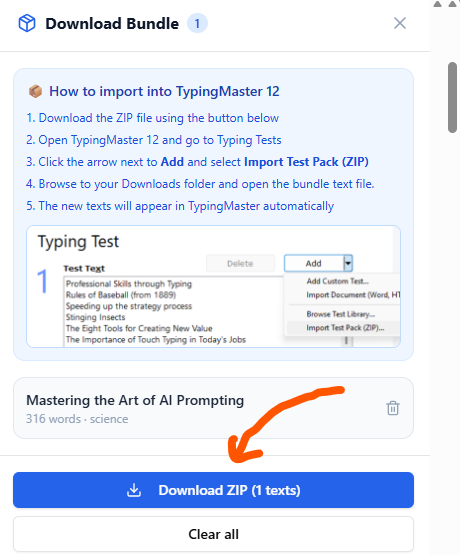
Second option is to download more texts with their setting to your TypingMaster, click the “Add to ZIP” button below the text. You can select multiple texts, which will be added to your “cart”. When ready, click the “Download ZIP” button in the bottom right corner. A compressed .zip file will be downloaded to your computer (usually in the Downloads folder).
1.
2. 
3. 
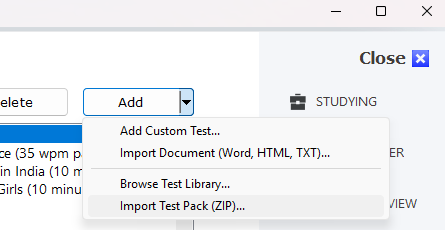
Once the download is complete, return to TypingMaster. From the dropdown menu next to the Add button, select “Import Text Pack (ZIP)”. Then choose the downloaded file (starting with “typing-text-bundle...”) from your Downloads folder and click “Open”.
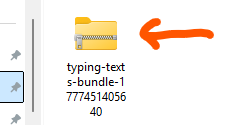
You will receive a confirmation that the texts have been imported, and they will now appear at the top of the “Test Text” list.
Was this article helpful?
That’s Great!
Thank you for your feedback
Sorry! We couldn't be helpful
Thank you for your feedback
Feedback sent
We appreciate your effort and will try to fix the article