What is the easiest way to start using TypingMaster?
The fastest and simplest way to start using TypingMaster 12 is to install it directly using Windows’ built-in package manager, winget. This method requires no manual downloads or installers, you can get TypingMaster running with just a single command, and the software will start automatically.
Q1: What is winget and why can I use it for TypingMaster?winget is the Windows Package Manager. It allows you to install software directly from the command line without visiting websites or downloading installers manually. TypingMaster can be installed and launched this way if it’s in the Microsoft Store or in the winget repository.
Q2: What do I need before using winget?
Windows version: Windows 10 (1809 or later) or any Windows 11.
Internet Connection
Q3: How do I install TypingMaster without downloading a file?
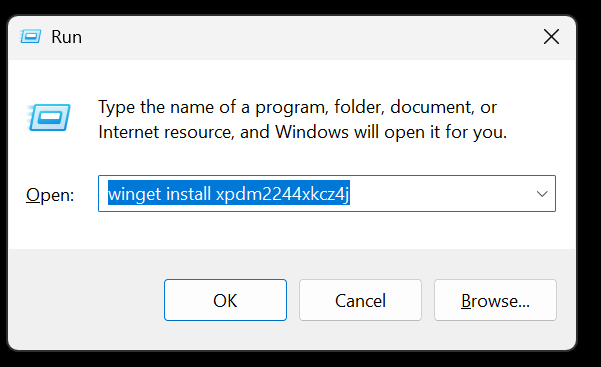
Press the
WinandRkeys at the same time to open the Run dialog.
(or Click the Start button, type Run, and click the Run app that appears.)Copy the following command and click OK:
Here,
xpdm2244xkcz4jis the unique identifier for TypingMaster in the winget repository.- When the license agreement appears, type
Yand press Enter. - Winget will download, install, and automatically start TypingMaster after installation.
NOTE: If your region is US, use the following command to install TypingMagic 12: winget install XP8JJRF1ZM4TJW
Was this article helpful?
That’s Great!
Thank you for your feedback
Sorry! We couldn't be helpful
Thank you for your feedback
Feedback sent
We appreciate your effort and will try to fix the article